
 English
 עברית
עבריתFree · Open source · Windows · macOS · Linux
The real Claude Code, for non‑coders too.
Claude Code's terminal was built for programmers, and that is what puts regular people off. This installer makes it simple: pick a folder, talk in your own language, and start working with no commands.
It installs and opens Anthropic's official agent itself, not a wrapper. Node.js and Git set themselves up in the background. Built by Noam Brand.
Download
Pick your installer
Two installers, same idea. Both are free, open source, and install the official Claude Code itself.
ClaudeCode Launchpad CLI
For English and any left-to-right language. Also the one for Mac.
About 2 minutes, no admin rights
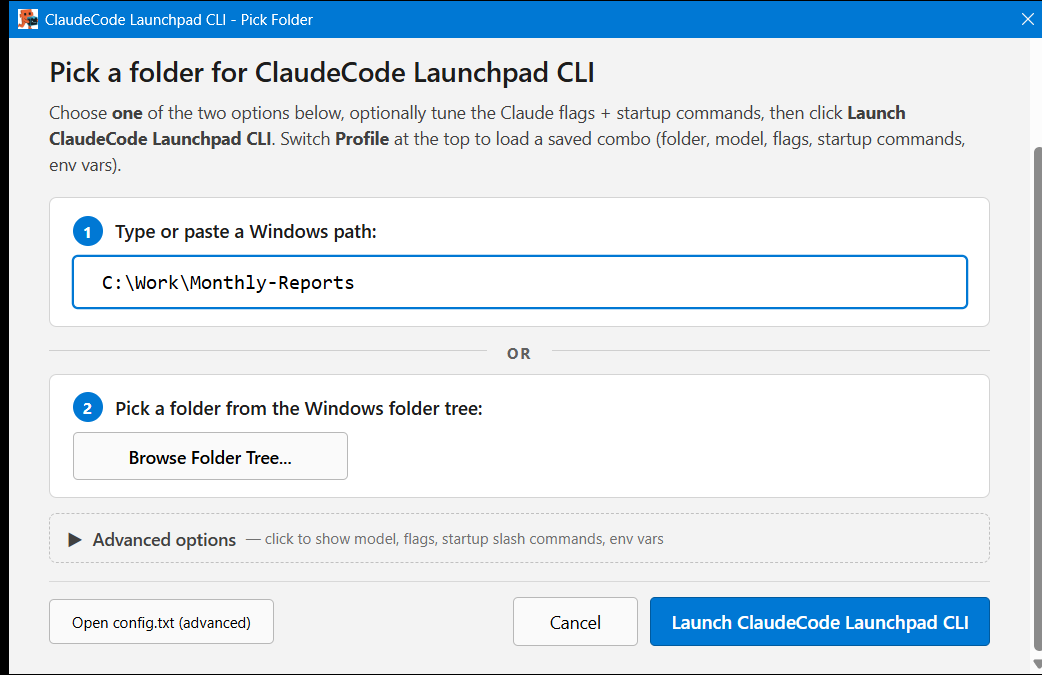
One normal installer sets up Node.js, Git, Claude Code, the theme and the status bar. Then a window opens: pick a folder and launch. Your folder, model and flags save as a named profile, so the second project is one click.
How to install, step by step
Close any open terminal windows before installing.
- Double-click ClaudeCode_Launchpad_CLI_Setup.exe. No administrator rights needed.
- If Windows shows "Windows protected your PC", click More info → Run anyway. If Smart App Control blocks it, set it to Off in Start, then re-run.
- Follow the wizard. It detects what is already installed and sets up Node.js, Git, Claude Code, the theme and the status bar. A few minutes.
- Launch from the desktop shortcut, pick a folder, and log in to Claude on first run.
macOS: open the .pkg; if it is blocked, go to System Settings → Privacy & Security → Allow Anyway, then run it again.
First launch: pick a text theme, then log in once. You need a Claude Pro, Max or Team plan; Claude opens your browser, you click Authorize, copy the code back, done.
Kivun Terminal
For Hebrew, Arabic, Persian, Urdu and 8 more right-to-left languages.
5 to 15 minutes, one reboot, admin needed
The only terminal setup on Windows that renders mixed Hebrew and English correctly: Hebrew right-aligns, and English words or file paths inside a Hebrew sentence land in the right place. Alt+Shift switches keyboard languages exactly like Windows.
Install in this exact order
Close any open terminal windows before installing.
- Right-click the downloaded Kivun_Terminal_Setup.exe and choose Run as administrator. Do not just double-click it. This is the step people miss.
- If Windows shows "Windows protected your PC", click More info → Run anyway. If Smart App Control blocks it, set it to Off in Start, then run the file again.
- It installs Windows Subsystem for Linux and asks you to reboot. Reboot, then run the same file again, again as administrator, to finish.
- The second run takes about 5 to 15 minutes. The progress bar can sit still for several minutes during the download; that is normal. It is done only when it shows Installation Complete with a Finish button.
Once it is running: copy with Ctrl+Shift+C and paste with Ctrl+Shift+V; plain Ctrl+C stops the running command instead of copying. Copied Hebrew keeps its correct order.
The problem
Installing Claude Code shouldn't require a computer‑science degree.
Claude Code is Anthropic's most capable way to work on real files. Getting to it is the wall.
Manual setup means Node.js versions, PATH variables and Git before your first request. Most people stop here.
The browser chat answers questions but cannot open your local files or finish a job across a folder.
VS Code wraps it in a developer editor with an extension to wire up. Built for programmers.
A bare terminal gives no warning when context runs low or the usage limit is about to stop you mid-task.
What it does
Every claim, with the thing itself
No illustrations. Each feature below is shown by the real screen it produces.
See your limits before they stop you
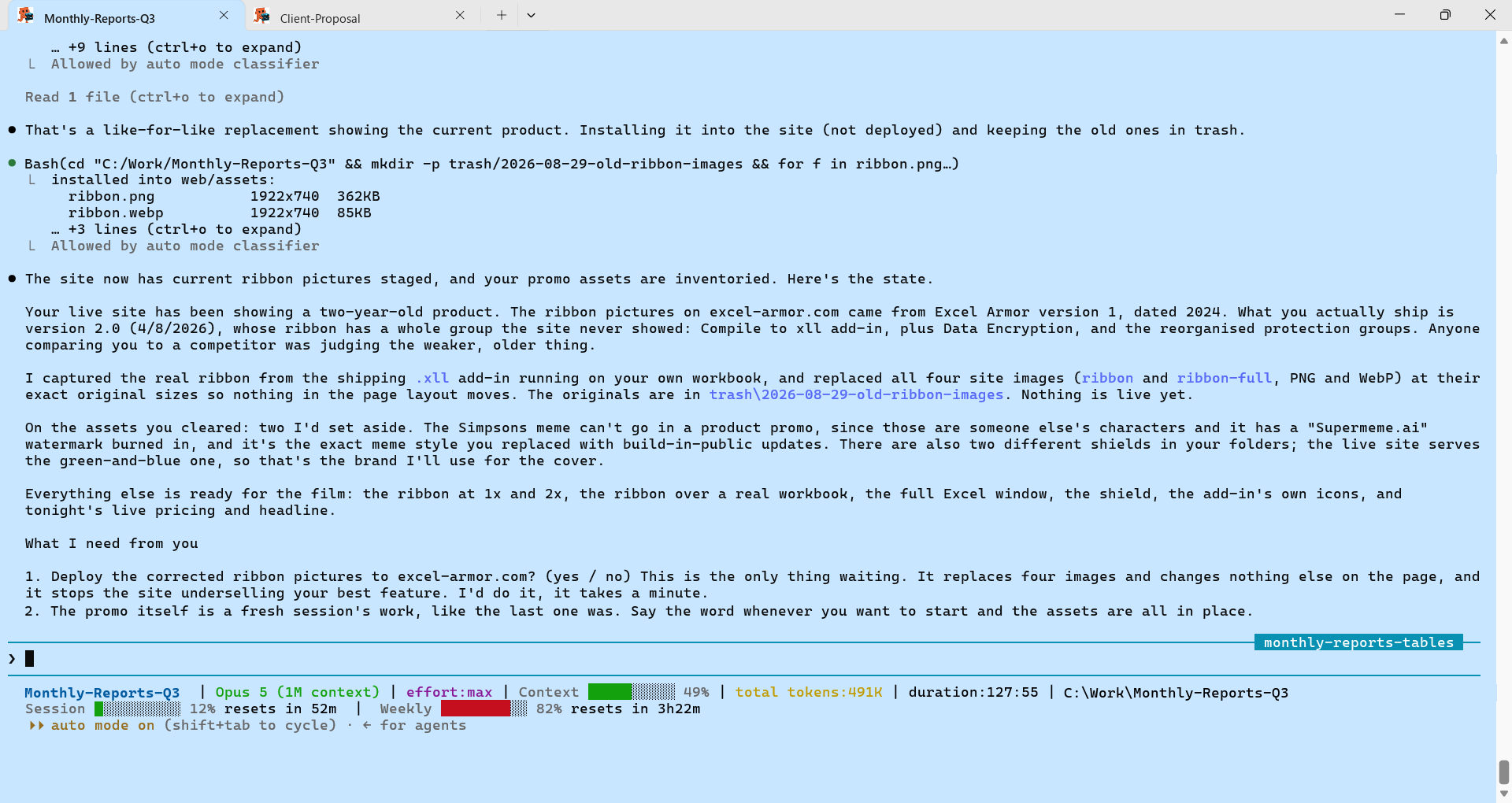
Two lines at the bottom of every session: model, context used, total tokens, and your 5-hour and weekly usage with time to reset. Green under 50%, amber to 79%, red from 80%.
The dark strip near the top of this page is that status bar, drawn with this site's own live numbers.
A terminal that doesn't look like a terminal
A clean, readable light-blue theme instead of a stark black screen, matched to Windows Terminal. Claude's colours stay readable on it.
Prefer something else? Pick any background colour in the picker's Advanced options, dark, black, white or custom, and the text colour adjusts itself to stay readable. It takes effect immediately.
Keep working after the limit resets
When Claude Code hits its 5-hour usage limit, the session normally sits idle until you come back. Turn on auto-continue and it waits for the limit's real reset time, then resumes your unattended work.
Honest print: opt in and off by default, it does not bypass the limit, your PC stays awake with the window open, any keystroke cancels it, and there is a per-session cap plus optional quiet hours.
- 2:00 at night. The 5-hour limit lands mid-job. The session pauses. Normally, the night is lost.
- It waits. Not guessing: it watches the reset time Claude itself reports.
- It resumes carefully. Before picking up, it has Claude check what was already saved, so nothing gets done twice.
- Morning. The work carried on without you.
Feels like a normal Windows app
Desktop shortcut, taskbar pinning, right-click any folder in Explorer to open Claude Code there, and each project opens as its own named tab.
Node.js, Git and every dependency configure themselves in the background, and re-running the installer is a clean upgrade. That is the part that takes a newcomer an afternoon by hand.
It speaks when it needs you
Four short voice alerts, tied to the moments that matter: finished, needs permission, waiting on you, act by hand. You stop babysitting the window.
On by default, one global switch turns every project silent. Tap the buttons beside this to hear them.
Open code, no markup, no lock-in
MIT licensed. The installer scripts are plain text you can read before they touch your machine. No telemetry. You pay only Anthropic for Claude, nothing to us.
Honest requirement: Claude Code itself needs a Claude Pro, Max or Team subscription.
- Free, MIT licensed. No account, no subscription to us, no markup.
- Nothing hidden. Everything the installer does is published openly, and anyone, including your IT person, can inspect it before you run it.
- No telemetry. It does not phone home, and it installs only official tools.
See it work, start to finish
The recorded demo: install, pick a folder, and watch Claude Code open on it and get to work.
Compare
Which Claude is right for you?
Honest, row-by-row comparisons. The other options are good at what they are for; these pages show where each fits.
See the full table, all five ways to run Claude, side by side
| Criterion | Claude Chat | Claude Cowork | Claude Code Desktop / App | Claude Code in VS Code | Claude Code in Terminal |
|---|---|---|---|---|---|
| Who it's for | Everyone | Non-technical users who prefer guided work | Anyone who wants Claude Code with a graphical interface | Developers | Advanced users and developers |
| How you work | Q&A | Performs tasks on screen | Describe and run in a visual session, with diff review | Describe and run inside the editor | Describe and run from the terminal |
| File access | Only attachments | What you approve | Direct access to your local files, per permission mode | Mostly within the open project, with manual extension | Full access per environment permissions |
| Speed | Instant | Slower | Normal usually | Normal to load-dependent | Faster |
| Stability | Browser-dependent | App-dependent | App-dependent | 2 failure points: extension + editor | CLI-only dependency |
| Recovery | Weak, history only | Medium, app-dependent | Good: parallel sessions; cloud sessions keep running if you close the app | Good: autosave + tabs | Excellent: saves commands and files, auto-resumes |
| Tool installation | ✗ | ✗ | ✓ plugins, MCP servers and skills | Possible, sometimes installs in remote env | ✓ |
| Multiple sessions | ✗ | ✗ | ✓ | Possible, varying convenience | ✓ |
| Agent teams | ✗ | ✗ | ✓ subagents and background tasks | Partial support | ✓ |
| Read local files | ✗ | ✗ | ✓ | ✓ | ✓ |
| Write local files | ✗ | ✗ | ✓ | ✓ | ✓ |
| Automations | ✗ | ✗ | ✓ scheduled tasks | Partially suitable | ✓ |
| When to choose | Questions, summaries | Screen & software tasks | Claude Code with a visual interface and diff review | Claude inside a code editor | Speed, control, and full automation |
Recommended
Learn it free, from people who teach it well
Guide · Free
Claude Code, the practical intro
By Noam Brand. Commands, shortcuts, CLAUDE.md, skills, permissions and workflows, with copy-paste examples.
Learning · Free · 6 languages
Zero to Claude Code
By Itay Shamol (VP, Wix), featured in Geektime. Structured paths from "what's a terminal?" to shipping, aimed at non-developers.
Learning · Free tier
GetFluent Academy
Hands-on courses and guides. The free tier covers the full course with daily-lesson caps; Pro removes the caps.
Related RTL tools from the community, five developers, five surfaces
Adaptive-RTL-Extension by Lidor Mashiach — browser extension, RTL for any website including LLM chat UIs.
Claude.ai RTL Support — Chrome extension built for Claude.ai specifically.
rtl-for-vs-code-agents by Guy Ronnen — VS Code, covers Claude Code, Cursor, Antigravity and Gemini.
Claude Code RTL Support by Yechiel Bar-Yehuda — for the official Claude Code IDE plugin, 2,400+ installs on Open VSX.
Claude-for-word-RTL-fix by Asaf Aizone — Hebrew and Arabic fix for the Claude for Word add-in.
Who builds this
Noam Brand
I build the free tools that put Anthropic's real agent in front of people who do not write code, and the only terminal setup that renders Hebrew, Arabic and Persian correctly on Windows.
FAQ
Frequently asked questions
The full list, including troubleshooting, lives on the live site. These are the eight people ask first.
Do I need to know how to code?
Is it really free?
Which installer should I pick?
Windows blocked the installer. Is that normal?
What if I already have Node.js or Claude Code?
Why the terminal and not the desktop app, Cowork, VS Code or the browser?
Why not just paste my file into the Claude chat?
Can I trust it?
More questions, including troubleshooting
Can I change what language Claude responds in? Yes. Choose it in the installer; run the installer again to switch. Hebrew, Arabic, Persian, Spanish, French and 20+ more.
Can I resume where I left off? Yes. In the folder picker, open Advanced options and turn on "continue your last session". Your choices save for next time.
How do I change the terminal background colour? Advanced options in the picker; the text colour adjusts automatically to stay readable.
Can I switch keyboard languages inside the terminal? Yes, Alt+Shift cycles every keyboard language you have in Windows, in Windows order, on the first press. Up to four, detected automatically.
Kivun uses a lot of memory. Can I limit it? Yes. Advanced options → WSL memory limit (for example 3 GB). Takes effect after WSL fully restarts. Launchpad does not use WSL, so it does not need this.
I typed exit and expected the window to close on me. It no longer does. Exiting Claude lands you at a normal prompt in the same window; type claude to jump back in with your settings, or exit again to close.
The installer froze. Usually it has not: during the download the bar can sit still for several minutes. Done only at "Installation Complete". Genuinely stuck 15+ minutes? Close, reboot, run it again; it resumes.
"WSL install not started" (Kivun). Right-click → Run as administrator and run it again. On a locked-down work PC, ask IT to run wsl --install once and reboot.
Ctrl+C doesn't copy. In a terminal copy is Ctrl+Shift+C, paste is Ctrl+Shift+V. Plain Ctrl+C interrupts the running command.
Claude's text has many colours. Broken? No. The colours are formatting: bold, headings, code, file names.
"Auto-update failed: no write permission". Type claude, run claude install, restart Claude, then /doctor to confirm. New installs set this up correctly and the launcher auto-repairs old ones.
Which permission mode should I use? Set flags once in the picker's Advanced options; they are saved and reused. Avoid --dangerously-skip-permissions, it turns off the safety checks.
What is the status bar exactly? Two lines: project, model, context bar, total tokens, duration, path; then session and weekly usage with reset times. Green under 50%, amber to 79%, red from 80%. It refreshes when Claude finishes a reply.
Claude Code, running in minutes.
One download. The wizard does the rest, and the window opens where you point it.